
PREREQUISITES
Make sure the following services are running before launching.
| Service | Role | Download Links |
|---|---|---|
| Ollama + gemma4:26b | The AI that writes scripts | Download Ollama |
| ComfyUI Portable | The video generation engine | Download ComfyUI potable |
| SearXNG (Docker Version for Win 11) (optional) | Web search for the chat | Download Docker Win x86_64 |
Get started in 5 steps
Latent Core is portable. ComfyUI must be installed once, then the installer handles everything else.
-
Extract Latent Core
Extract the archive to
C:\LatentCore\. YourC:\root should now contain bothComfyUI_windows_portable\andLatentCore\folders. -
Run
SETUP.batDouble-click the installer. It will detect ComfyUI, copy bundled custom nodes, install Python dependencies, create the ComfyUI launcher (port 4891), and download ~78 GB of AI models. Duration: 1–3 hours depending on your connection.
-
Launch Latent Core
Double-click the desktop shortcut “Start ComfyUI (Latent Core)” to start ComfyUI on port 4891, then launch the LatentCore RUN.bat
C:\LatentCore\RUN.bat. Your browser opens automatically athttp://127.0.0.1:9001.
💡 The installer is resumable — if it crashes or you cancel, just run SETUP.bat again. It will skip anything already installed.
Services Configuration
Open the SETTINGS menu and configure the paths, IP addresses, and ports for each service.
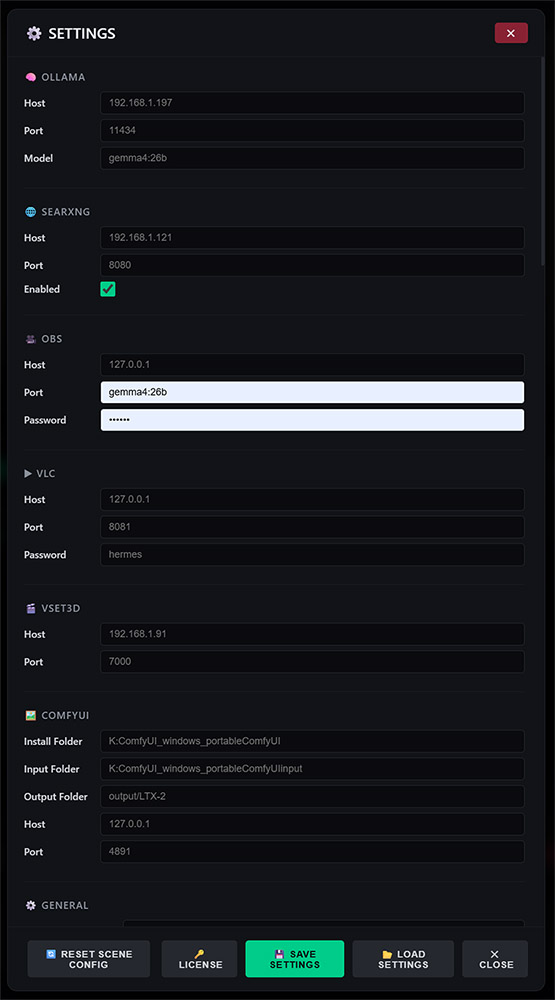
Ollama
- Host: Enter the IP address of the computer where Ollama is installed. Enter
127.0.0.1if Ollama and Latent Core are on the same computer. - Port: Enter
11434, the default value for Ollama. - Model: Enter
gemma4:26b, or the name of the model you added in Ollama.
SearXng
- Host: Enter the IP address of the computer where SearXng is installed. Enter
127.0.0.1if SearXng and Latent Core are on the same computer. - Port: Enter the port number you specified when installing SearXng in Docker.
OBS
- Host: Enter
127.0.0.1. OBS must be installed on the same computer as Latent Core. - Port: Enter
4455. Be sure to configure OBS to use the same port. - Password: Enter the password you set in OBS via the WebSocket Server Settings menu.
VLC
- Host: Enter
127.0.0.1. VLC must be installed on the same computer as Latent Core. - Port: Enter
8081. Be sure to configure VLC to use the same port. - Password: Enter
hermes.
RUN.bat, which launches Latent Core using this command:
start "" "%VLC_PATH%" --extraintf=http --http-host=127.0.0.1 --http-port=8081 --http-password=hermes --one-instance --no-video-title-showVset3D
- Host: Enter the IP address of the computer where Vset3D is installed.
- Port: Enter
4455. Be sure to configure OBS to use the same port. - Port: Enter
7000. Be sure to configure Vset3D to use the same port.
ComfyUI
- Install Folder: Enter the path to
\ComfyUI_windows_portable\ComfyUI - Input Folder: Enter the path to
\ComfyUI_windows_portable\ComfyUI\input - Output Folder: Enter the path to
\ComfyUI_windows_portable\ComfyUI\output\LTX-2 - Host: Enter the IP address of the computer where ComfyUI is installed.
- Port: Enter the port specified in the
run_nvidia_gpu_server.batfile located in ComfyUI.
--listen --port 4891 --enable-cors-header
Example .bat file to launch ComfyUI:
start "" "K:\ComfyUI_windows_portable\python_embeded\python.exe" "K:\ComfyUI_windows_portable\ComfyUI\main.py" --listen --port 4891 --enable-cors-headerSystem requirements
Minimum
- Windows 10/11 (64-bit)
- 32 GB RAM
- NVIDIA GPU — 12 GB VRAM
- 1 TB NVMe SSD
- CUDA drivers installed
Recommended
- Windows 11 (64-bit)
- 64 GB RAM or more
- NVIDIA RTX 4090 / 5090 (24/32 GB VRAM)
- 1 TB NVMe SSD
- Gigabit network
Frequently asked questions
Is the downloadable demo really free?
Yes, 7 days of full access, no credit card, no signup. You can request a free extension if you need more time for testing.
What happens after 7 days?
Latent Core deactivates; you can request an extension if you need more time for testing. You can upgrade to the PRO or STUDIO versions at any time, without data loss or reinstallation.
Do I need a powerful GPU?
Yes, Latent Core requires an NVIDIA GPU with CUDA support. Minimum 12 GB VRAM. For 4K rendering (STUDIO) you need 32 GB VRAM (RTX 5090).
How do I buy a license after the trial?
Visit our shop to purchase PRO or STUDIO. After payment, send your hardware ID (visible in the software’s License panel) to vset3d.com. You’ll receive your activation key by email within 12 hours.
Is my data sent anywhere?
No. Latent Core runs 100% locally on your machine. Your scripts, images, and videos never leave your computer. The only optional external connection is web search (SearXNG) if you enable it.
Is the quality really comparable to cloud tools?
Our raw video quality is approximately 7/10 vs 8/10 for top cloud tools. For 95% of broadcast and content production use cases, the difference is negligible. What you gain: no censorship, no limits, no recurring costs, and complete privacy.
Need help getting started?
Our team is available to help you install, configure, and get the most out of Latent Core.
📧 Contact Support